What is INKY?
INKY is an advanced email security solution that helps protect your organization from phishing, malware, ransomware, and other email-based threats. Rather than simply blocking suspicious messages, INKY analyzes every email and displays a banner at the top of the message to help you understand its level of risk before you interact with it.
The banner is designed to help you make informed decisions—it does not always mean an email is dangerous.
Microsoft 365 Backup, Security & Protection, including INKY, is provided through our partnership with Forvan Technologies. If you require assistance related to INKY, please email forvansupport@officeworks.ca. This shared support mailbox ensures that both the Office Works and Forvan teams are informed of your request, allowing us to respond as quickly and efficiently as possible.
Understanding INKY Email Banners
Gray Banner – Safe

A gray banner indicates that INKY has analyzed the email and found no significant security concerns. The email has passed through INKY's inspection and appears safe to interact with.
What to do:
- Read and respond as you normally would.
- Continue to use good judgement, especially if the email requests sensitive information or financial transactions.
Blue Banner – Known External Sender

A blue banner indicates the email is from an external sender that has been identified by your organization's IT administrators as a trusted sender. Examples may include software vendors, benefits providers, ticketing systems, suppliers, or regular business contacts.
What to do:
- The sender has been identified as trusted.
- Continue to remain cautious if the content of the email seems unusual or requests unexpected actions.
Yellow Banner – Caution

A yellow banner means INKY noticed something unusual about the email. This does not necessarily mean the message is malicious—it simply means you should take a closer look before acting.
Examples include:
- First-time sender
- Unusual email characteristics
- Unexpected attachment
- Unexpected request
- External sender
What to do:
- Read the email carefully.
- Hover over links before clicking.
- Only open attachments you were expecting.
- If something doesn't seem right, contact the sender using a known phone number or previous email.
Red Banner – Danger

A red banner indicates that INKY believes the message contains strong indicators of phishing or another security threat. This may include:
- Brand impersonation
- Email spoofing
- Malicious or blacklisted links
- Credential harvesting attempts
- Malware attachments
- Other high-confidence phishing indicators
You can click Details within the banner to see why INKY classified the email as dangerous.
What to do:
- Do not click links or open attachments.
- Do not provide passwords or sensitive information.
- Report the email if you believe it is phishing.
- Contact Office Works if you are unsure whether the email is legitimate.
Important: A red banner does not automatically mean the sender has been compromised. Occasionally, legitimate emails may be incorrectly classified. If you believe a trusted email has been flagged in error, please contact Office Works so we can investigate.
Reporting Suspicious Emails
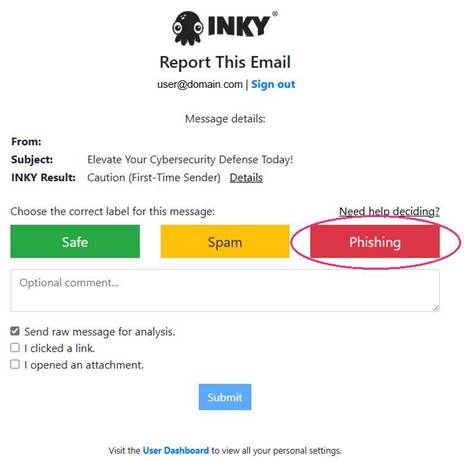
If you receive an email you believe may be phishing, you can help improve security by reporting it directly through INKY.
Simply click Report This Email found beneath any INKY banner. You'll be asked whether the message should be classified as:
- Safe
- Spam
- Phishing
This information is sent to INKY for further analysis and helps improve future detection.
What Happens if You Click a Suspicious Link?
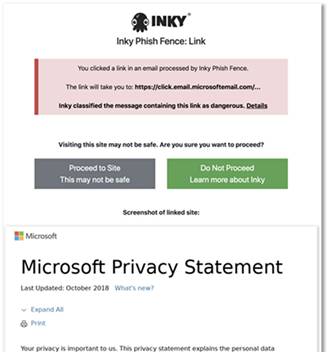
INKY protects links by checking them before allowing your browser to visit the destination.
If a link has been identified as suspicious or dangerous, INKY may display:
- A preview of the destination website.
- The reason the link was flagged.
- Options to continue or return safely.
Depending on the security policy we have set for you, you may not be allowed to continue to the destination. In these cases, INKY blocks access to help protect your account and your organization's data.
If you believe a legitimate website has been blocked:
- Do not attempt to bypass the warning.
- Contact Office Works by email: forvansupport@officworks.ca, so we can review the email and determine whether it is a false positive.
Email Security Best Practices
Even with advanced email protection, users remain the final line of defense.
Always:
- Think before clicking links.
- Verify unexpected requests for money, passwords, or banking changes.
- Be cautious of urgent or threatening language.
- Never share passwords or multi-factor authentication (MFA) codes by email.
- When in doubt, ask.
Need Help?
If you're ever unsure about an email, don't guess.
Forward the email to forvansupport@officworks.ca before clicking any links or opening attachments. We'd much rather investigate a legitimate email than help recover from a compromised account.
Was this article helpful?
That’s Great!
Thank you for your feedback
Sorry! We couldn't be helpful
Thank you for your feedback
Feedback sent
We appreciate your effort and will try to fix the article