If you are browsing around on the Internet and suddenly get a pop-up (similar to the image below) that states ANY type of error or security warning - AND it states to call a number - first assume that it's fake before getting scared into any other details on the screen.
Continue reading below the sample image.
(Phone number blocked out to prevent scammers being called.)
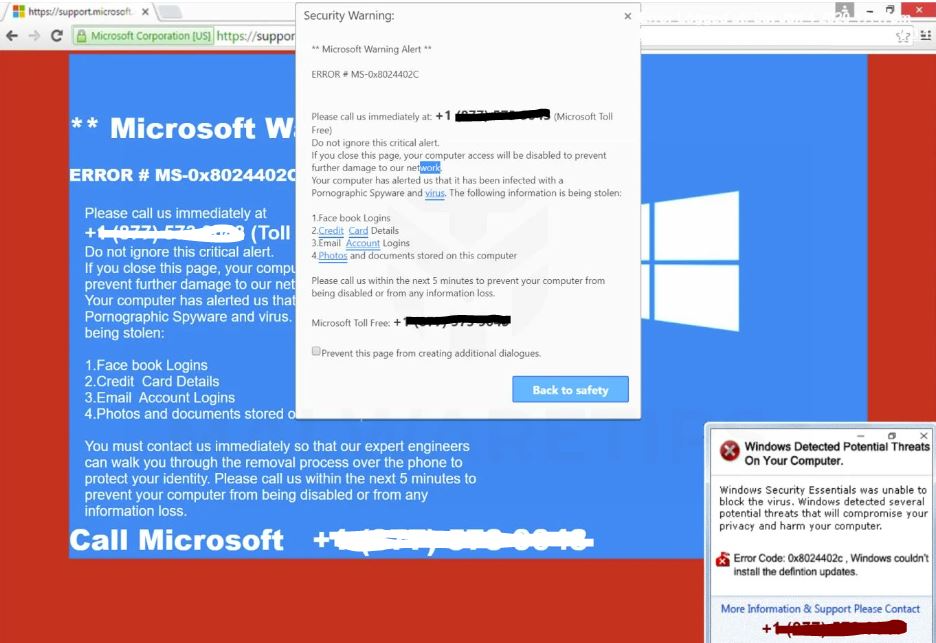
These types of "error messages" are nothing more than a crafty attempt to scare the computer user and have them call the fake tech support number. The intent of these scammers is to further scare you, so that you hopefully allow them to gain remote access to your computer. Once they've gained access to your computer the possibilities are endless. They can steal passwords, lock you out of your computer, delete data, leave malware or viruses on your computer, etc. Sometimes they will try to talk you into a "service subscription".
No matter what the wording is on the screen or what they might say on the call - don't trust it. A real error message will seldom (if ever) include a phone number to call.
Instead of calling the number, this is what you should do.
- Look at the bottom left area of your keyboard. Locate the CTRL key at the very bottom left and directly above it the SHIFT key (sometimes depicted by an arrow pointing up).
- Next, locate the ESC key at the very top left of your keyboard.
- Hold both the CTRL and the SHIFT keys and then tap the ESC key once - this will bring up a "Task Manager" window. (Alternately, you can press CTRL + ALT + DELETE and then click on "Task Manager")
- In the list of Apps, locate your Internet browser - this could be Microsoft Edge, Google Chrome, Firefox or some other browser. Click the app name once so it's highlighted in blue.
- Click the End Task button at the bottom right of the Task Manager window. This will close your browser and ultimately the fake error message.
- Now open your browser one more time, and it will offer to "Restore Tabs" - you DO NOT want to do this as it will bring back the same, fake error message page. Just click the little "X" at the top right of the Restore Tabs box.
- That's it! Your "scary error" is gone and you don't need to call the number! You're welcome! :)
How to prevent this from happening again.
- We recommend installing this free browser add-on from Malwarebytes to help prevent these pages from coming up in the first place. Be sure to do this on all browsers you use.
- Report the scam
- Report the scam to Microsoft using this form
- Call the Canadian Anti-Fraud Centre at 1-888-495-8501 or report a complaint using this form
- Read the following articles from Microsoft for more in-depth details on the scams and how to report and prevent them:
If you truly do have a computer problem, don’t call a random number appearing on your screen and don’t fall for any technician that calls you. Find a local, reputable computer company that you can call with confidence, or actually stop in to speak with and feel at ease using their services.
Office Works
Your Technical Team - On Your Side
Call or Text: 519.863.6336 - Email: support@officeworks.ca
Website: www.OfficeWorks.ca
Was this article helpful?
That’s Great!
Thank you for your feedback
Sorry! We couldn't be helpful
Thank you for your feedback
Feedback sent
We appreciate your effort and will try to fix the article